The classic. You start Parrot, everything works, then the moment you join the meeting your own words stop appearing. What's happening: some call apps (Safari-based meets are notorious) grab exclusive control of the microphone, and macOS starts feeding every other app pure silence without telling anyone. Parrot watches for exactly this. You'll see an orange "mic muted by another app" warning, and it retries every few seconds until it wins the mic back, usually the moment the call app lets go. The other side of the call records fine throughout. If your own words matter most, join the meeting first and start Parrot second.
A first-time model download can genuinely take minutes on slow internet, that's normal. But if it sits there forever with no progress, quit Parrot and open it again; a fresh start clears it in almost every case. If it keeps happening, pick the model again in Settings → Transcription.
Downloads carry on after you close the setup window, and if you quit halfway, the next launch picks up where it left off. A download only gives up when nothing has arrived for a minute; press Retry to try again.
Use Or download it from ollama.com under the Install row, open Ollama once, and come back: the rows turn green on their own. Parrot only opens an Ollama it has checked is signed by Ollama, so a damaged download is thrown away rather than run.
On macOS 15 and newer, the System Audio row confirms itself the first time Parrot actually hears meeting audio, so it can stay unconfirmed until your first recording. If recordings come back without the other side's voice, open System Settings → Privacy & Security → Screen & System Audio Recording and make sure Parrot is listed under "System Audio Recording Only" with the toggle on.
On macOS 14, Screen Recording permission only takes effect after a restart. Quit Parrot fully and reopen it. If the row still hasn't flipped to a green check, check System Settings → Privacy & Security → Screen Recording actually lists Parrot with the toggle on.
Loud non-speech sounds (typing right next to the mic is the usual culprit) can make Whisper hallucinate a confident sentence, sometimes in a random language when auto-detect is on. Setting your language explicitly in Settings → Transcription helps a lot. Getting your keyboard out of the mic's face helps more. We're working on filtering these out automatically.
If every line reads like English that makes no sense, the call was probably in another language while Settings → Transcription → Language was set to English (or Deepgram was on auto-detect for a language it doesn't cover). Parrot now spots this within seconds and shows a banner across the top of the call screen with a Switch button. To skip the guess entirely, pick the Call language under Start recording. Your audio is always saved, so an affected call can still be transcribed again in the right language.
On a call taken on speakers, your microphone also hears the other person. Echo cancellation takes most of that out, but a faint copy is left, and next to the clean recording it sounds like an echo a beat behind. When you play a call back, Parrot turns your side down while only they are talking, and back up when you speak. If a few of their lines still sound doubled, the transcript shows those lines as yours too, so Parrot can't tell them apart. Headphones avoid it entirely.
Crash, force-quit, power loss: on the next launch Parrot finds the interrupted meeting and rescues whatever was already transcribed, then runs the normal report on it. Only a meeting that never captured a word is marked failed.
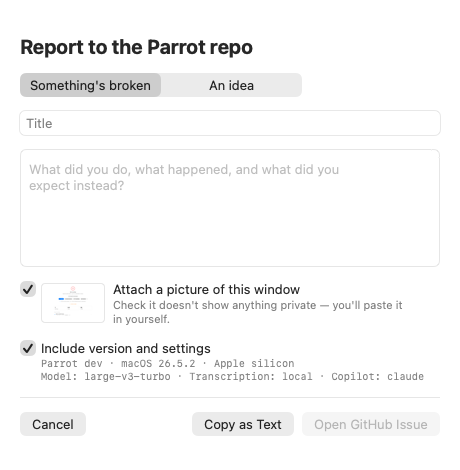
Click the little ladybug in the bottom right corner of the window, or use Help → Report a Bug…. Write what happened, and Parrot fills in the rest: the version you're on, your model and transcription settings, and optionally a picture of the window. Nothing is sent anywhere by itself. The button opens a pre-filled issue on GitHub, you look it over, and you post it. The screenshot is a picture of Parrot's window only, never your whole screen, and it goes on your clipboard so you paste it in yourself with ⌘V. Give it a glance first if the window was showing someone's transcript.
The same sheet takes ideas and feature requests, not just bugs.
For audio problems specifically, a diagnostic log makes them findable.
Run the app with PARROT_AUDIO_DEBUG=1, reproduce the problem,
then grab the log with:
log show --last 10m --predicate 'subsystem == "com.uygar.parrot"'
Paste that into the issue too and you've just made someone's debugging day much easier.